Start here
The preview
The preview shows the book as typeset pages.
Open the preview
Section titled “Open the preview”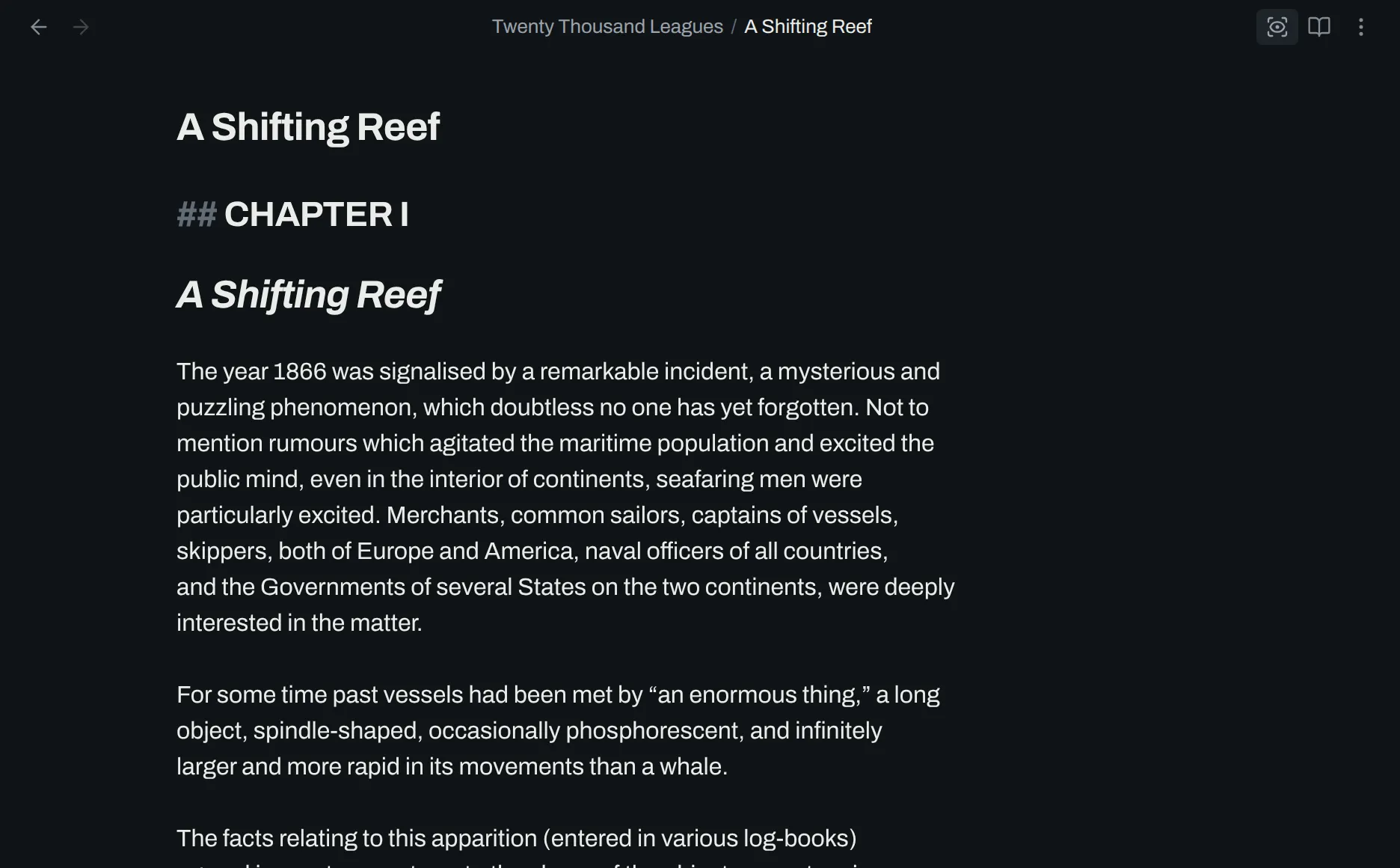
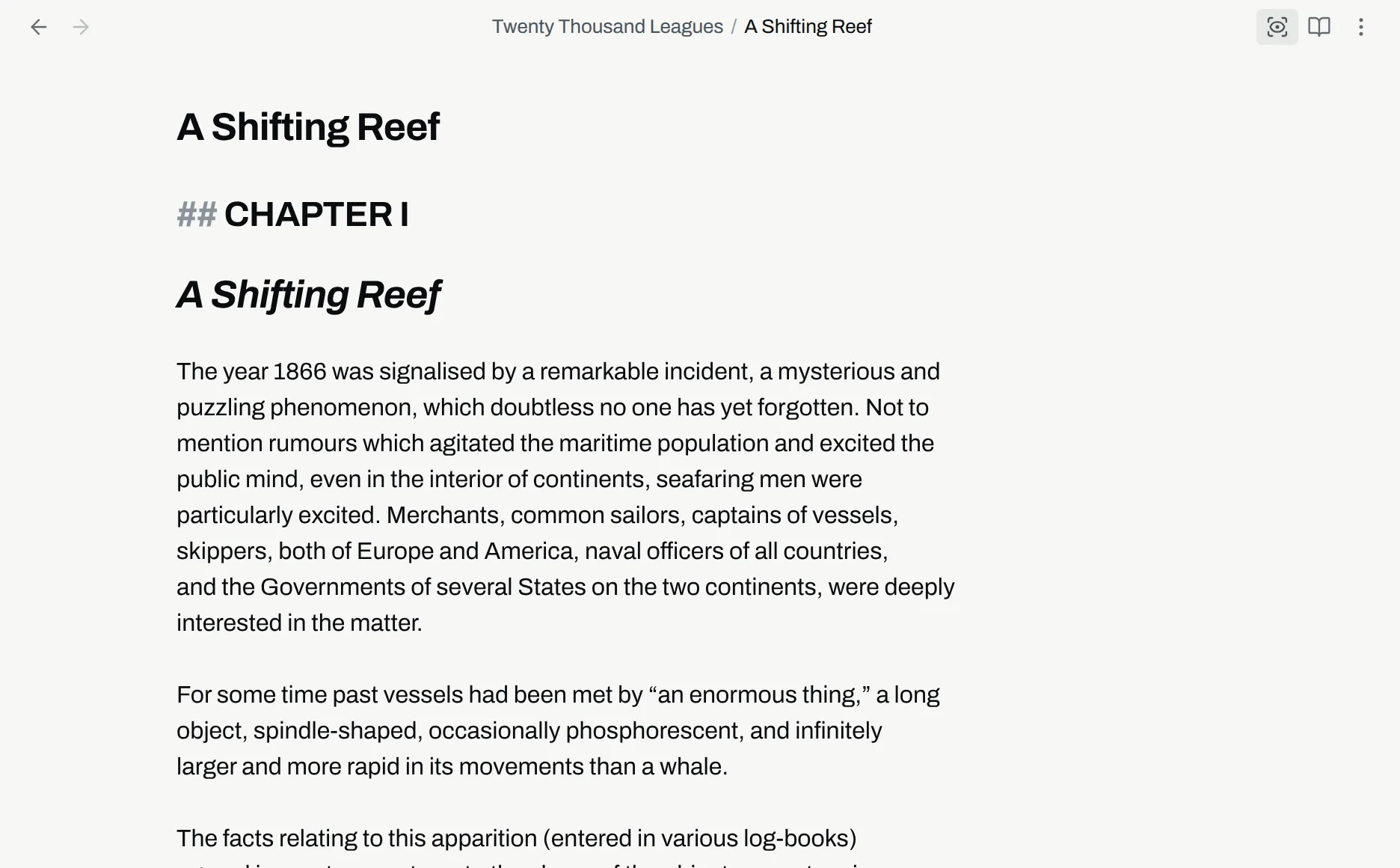
- Open a note that is in a book.
- In the header, select Open preview.
The preview of the book opens in the pane, at the chapter that you were editing.
Preview pane actions
Section titled “Preview pane actions”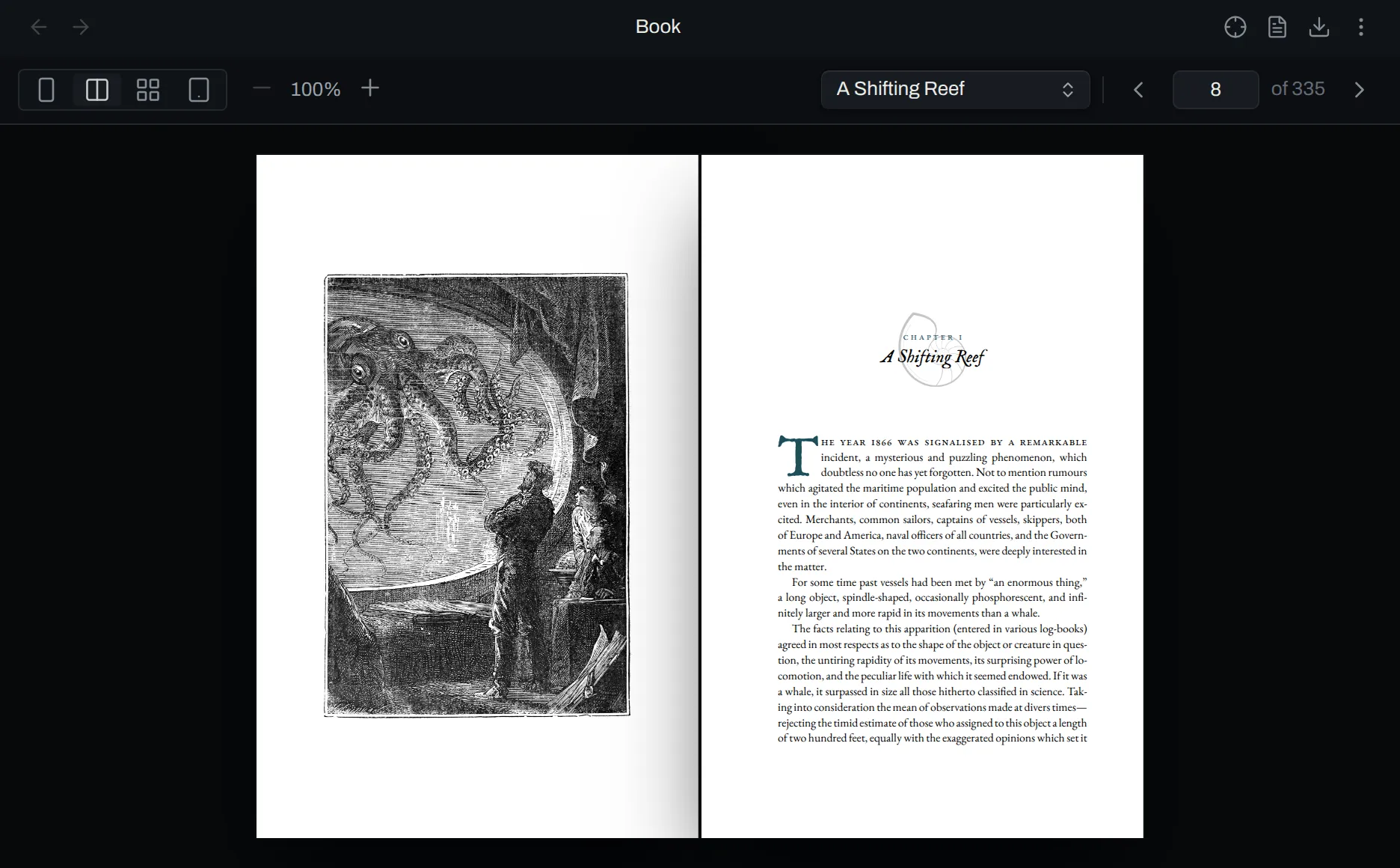
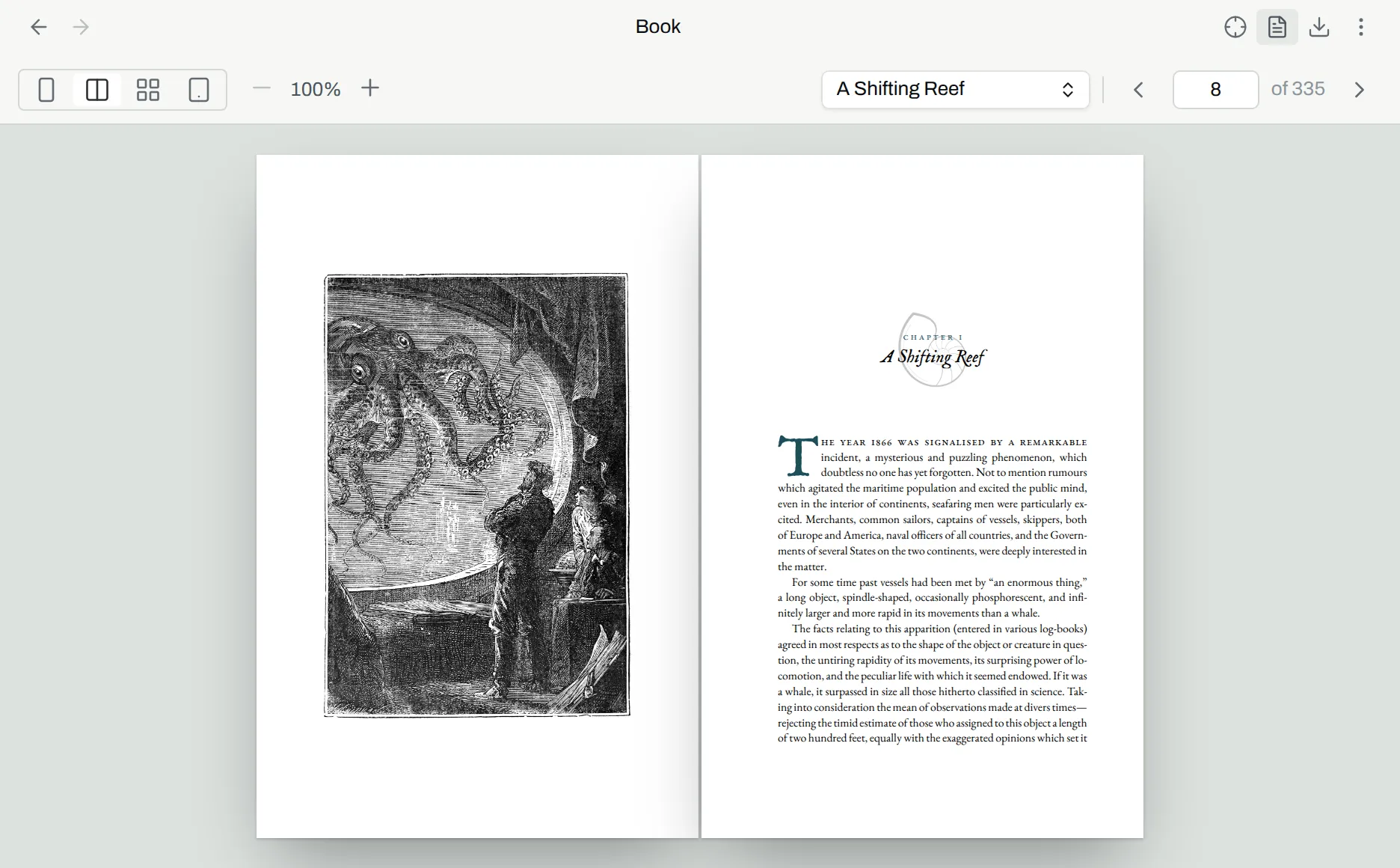
The preview has three actions in its header:
- Inspect the page toggles inspect mode. The inspector shows how to use it.
- Open as markdown shows the chapter markdown in the editor.
- Export book opens the export dialog.
Warnings
Section titled “Warnings”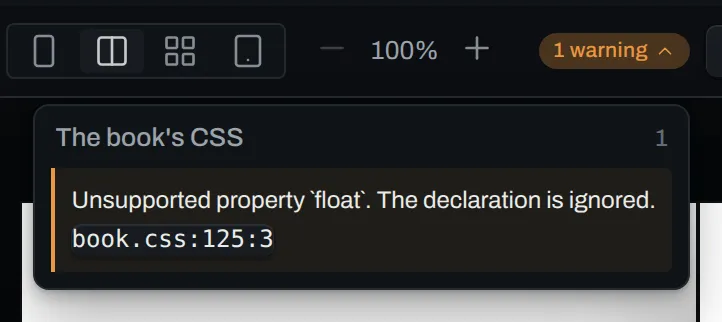
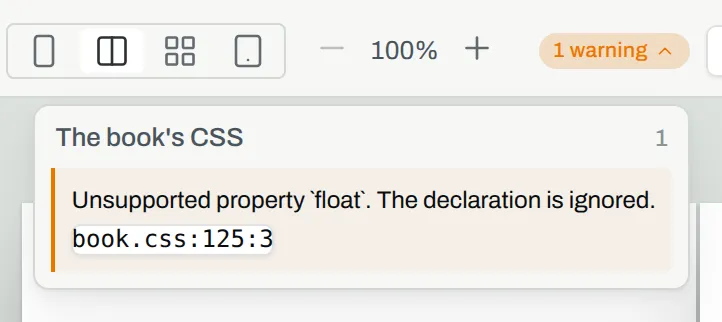
If fleuron gives a warning when it sets the book, the preview shows the count of warnings.
- To see each warning, select the dropdown. The warnings are in groups. The warnings for your CSS are in the group
The book's CSS, and the warnings for a note are in a group named after the note. - To go to the place of a warning, select its place. A warning against your CSS opens the CSS view of the design panel with the cursor on that line. A warning against a note opens that note with the cursor on that line.
Design the book
Section titled “Design the book”When the preview opens, the design panel opens in the right sidebar. The panel changes the design of the book, and the preview updates in realtime. The design panel shows how to use it.
Commands
Section titled “Commands”Run these commands from the command palette. A command is available only when the active pane matches its Available when column.
| Command | Available when | Result |
|---|---|---|
Open preview to the right |
A note in a book is open | Opens the preview of the note in a new pane to the right. |
Open manuscript to the left |
The preview is open | Opens the note of the previewed chapter in a new pane to the left. |
Next chapter |
The preview is open | Moves the preview to the next chapter in reading order. |
Previous chapter |
The preview is open | Moves the preview to the previous chapter in reading order. |
Export to PDF shows how to write the book to a file.