The inspector
The inspector shows the CSS rules that style an element of a page. Use it to find out why an element of the book looks the way it does, or to find the selector for a rule of your own.
Turn on inspect mode
Section titled “Turn on inspect mode”- Open the preview.
- In the header of the preview, select Inspect the page.
You can also run the command Inspect the page from the command palette.
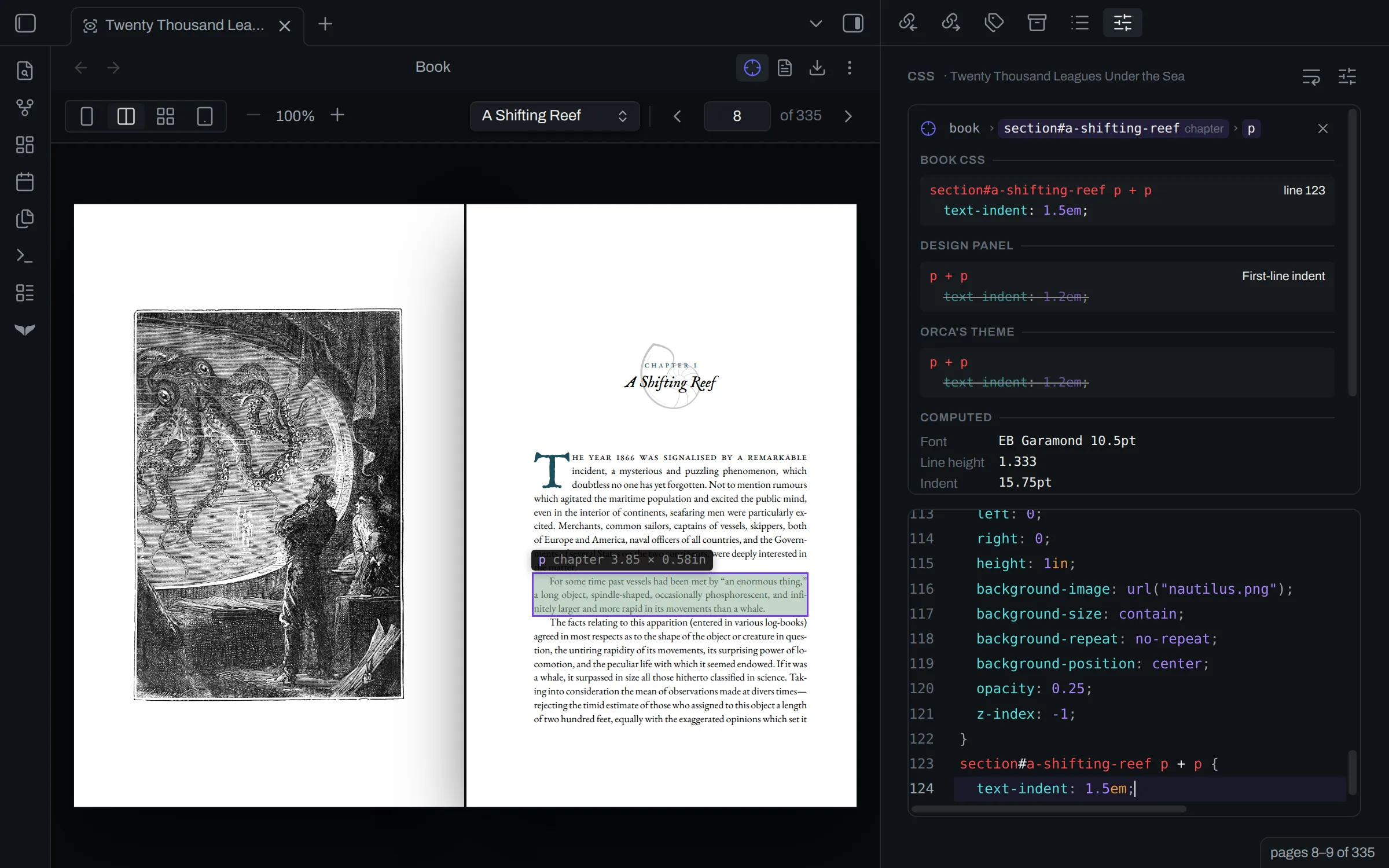
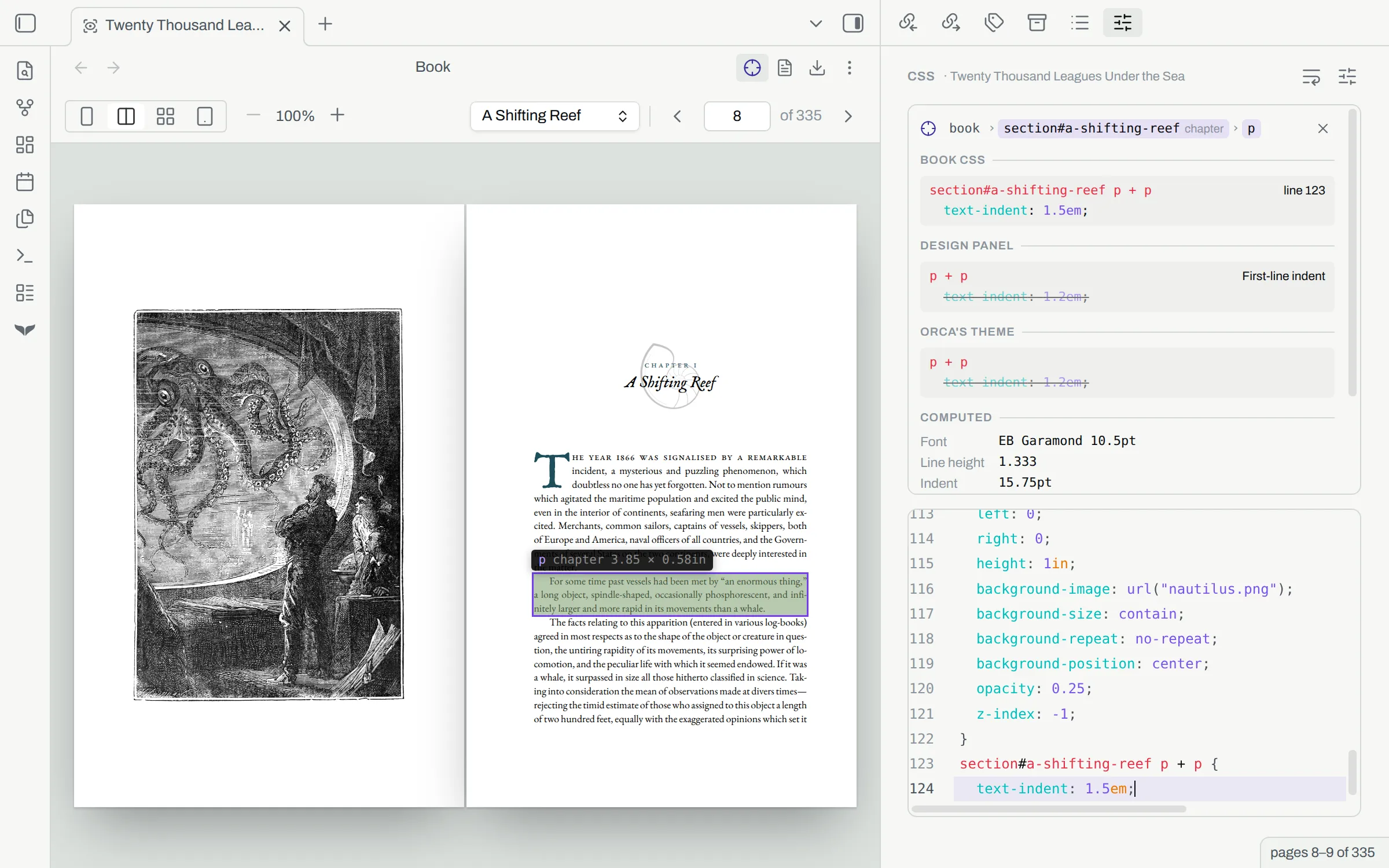
When you move the pointer over the page, the inspector outlines the element under the pointer. The margin, the padding and the content each get a light tint. A tag above the outline names the element, the role of its section and its size, for example p chapter 3.85 × 0.58in.
If an element continues on the next page, the inspector outlines it on both pages. A running head or a page number is a margin box of an @page rule, and you can pick it in the same way.
Pin an element
Section titled “Pin an element”Select an element of the page to pin it. The design panel opens its CSS view, and a pane opens above the editor.
The top row of the pane shows the path from the book to the pinned element, for example book › section#a-shifting-reef › p. A section shows its id and then its role, for example section#a-shifting-reef chapter.
Select a drop cap, the opening line of a paragraph, or a box that your CSS generates, and the inspector pins that part rather than the element around it. The pane then shows the rules that match the part. The path ends with the part after its element, for example book › section#a-shifting-reef › p › ::first-letter. Select the crumb for the element to pin the element instead.
Matched rules
Section titled “Matched rules”The pane shows only the rules that match the pinned element. It groups them by where they come from:
| Group | Rules from |
|---|---|
Book CSS |
Your CSS |
Design panel |
The controls of the design panel |
Orca's theme |
Orca’s theme |
In each group, the rule that takes precedence comes first. A line goes through a declaration that another rule takes precedence over. Custom CSS shows the order in which the groups apply.
If fleuron skipped a declaration in your CSS, the pane shows the declaration with a wavy line and the warning below it.
Under the rules, Computed shows some of the final values, for example the font, the line height and the indent.
Go to the source of a rule
Section titled “Go to the source of a rule”Each rule names its source on the right.
- A rule from your CSS names its line, for example
line 21. Select it to put the cursor on that line. - A rule from the design panel names its control, for example
First-line indent. Select it to open that control. - A rule from Orca’s theme names no source.
Orca writes some rules for a role, and no control sets them. An example is the layout of the entries on the contents page. Such a rule names its role, for example contents, in gray. You cannot select it.
Add a rule
Section titled “Add a rule”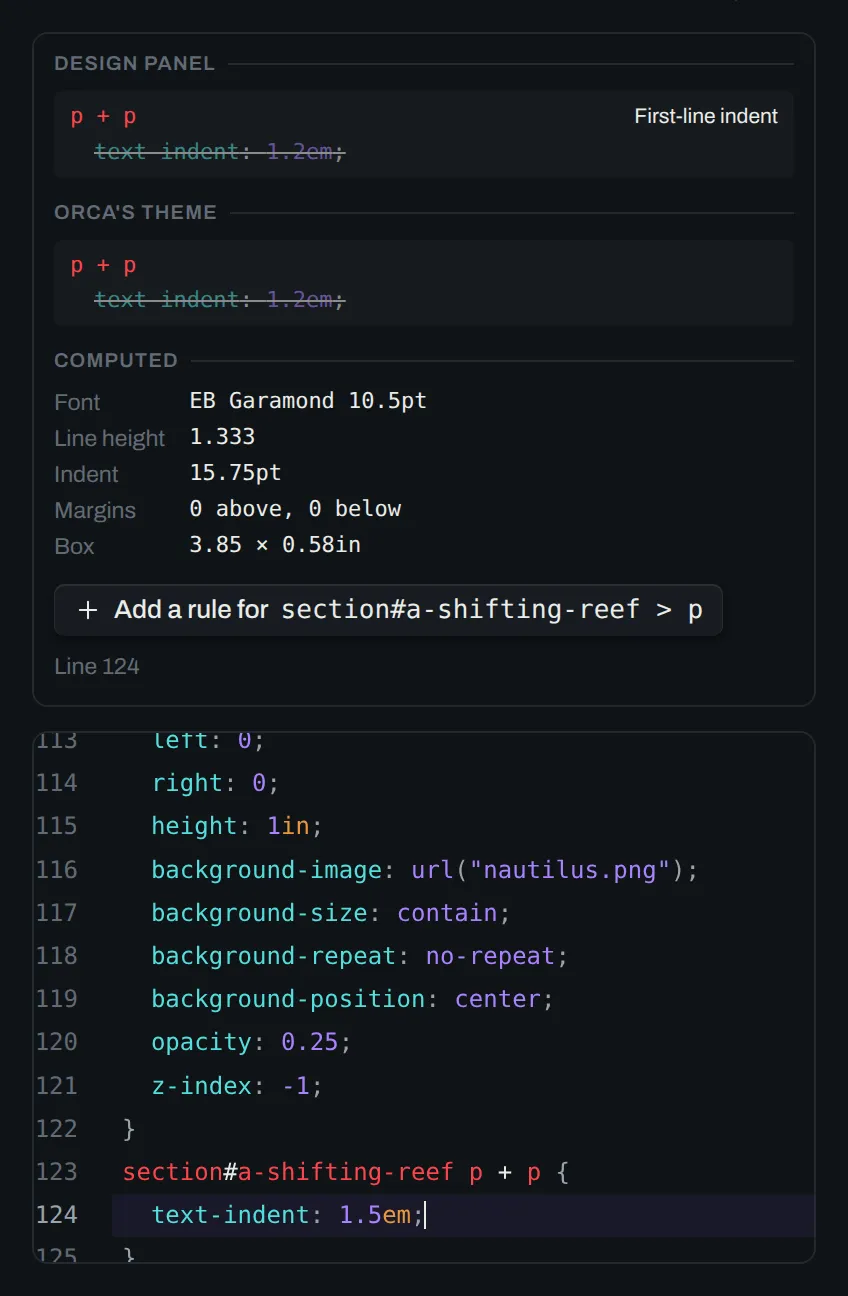
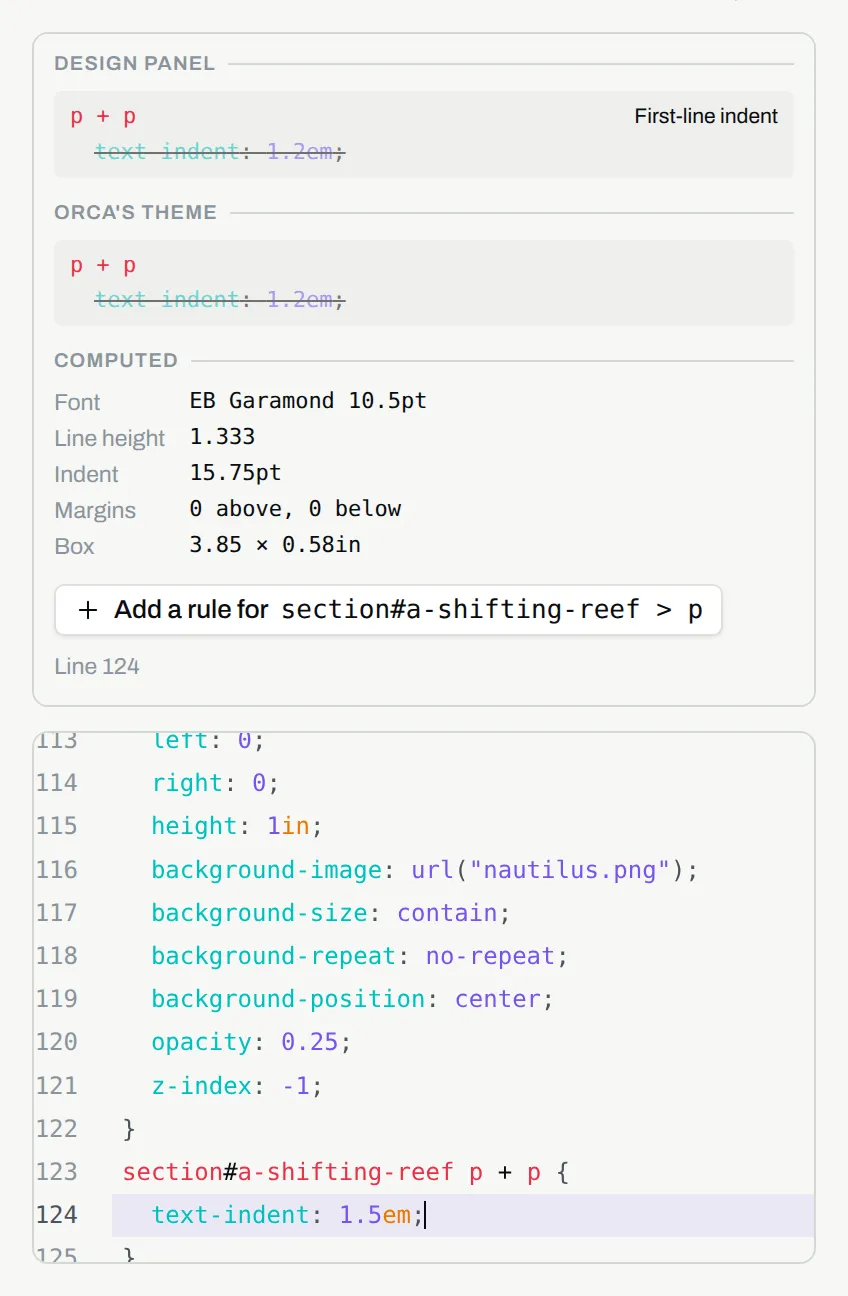
Add a rule for puts an empty rule with that selector in your CSS, at the cursor in the CSS view.
The selector starts at the nearest section or other element with an id, and ends at the pinned element. To add a step of the path to the selector or take it out, select that step in the top row of the pane.
For a margin box, orca puts the rule inside its @page rule.
Remove the pin
Section titled “Remove the pin”To remove the pin, do one of these:
- Press Escape.
- Select the pinned element again.
- Select a place on the page where there is no element.
- In the pane, select Unpin.
Inspect mode stays on when you remove the pin.
Turn off inspect mode
Section titled “Turn off inspect mode”If no element is pinned, press Escape. You can also select Inspect the page again, or open the manuscript. Escape works only while the preview has focus.