Export
Export to PDF
To export the book, select Export book in the header of the preview, or run the command Export book.
Export the book
Section titled “Export the book”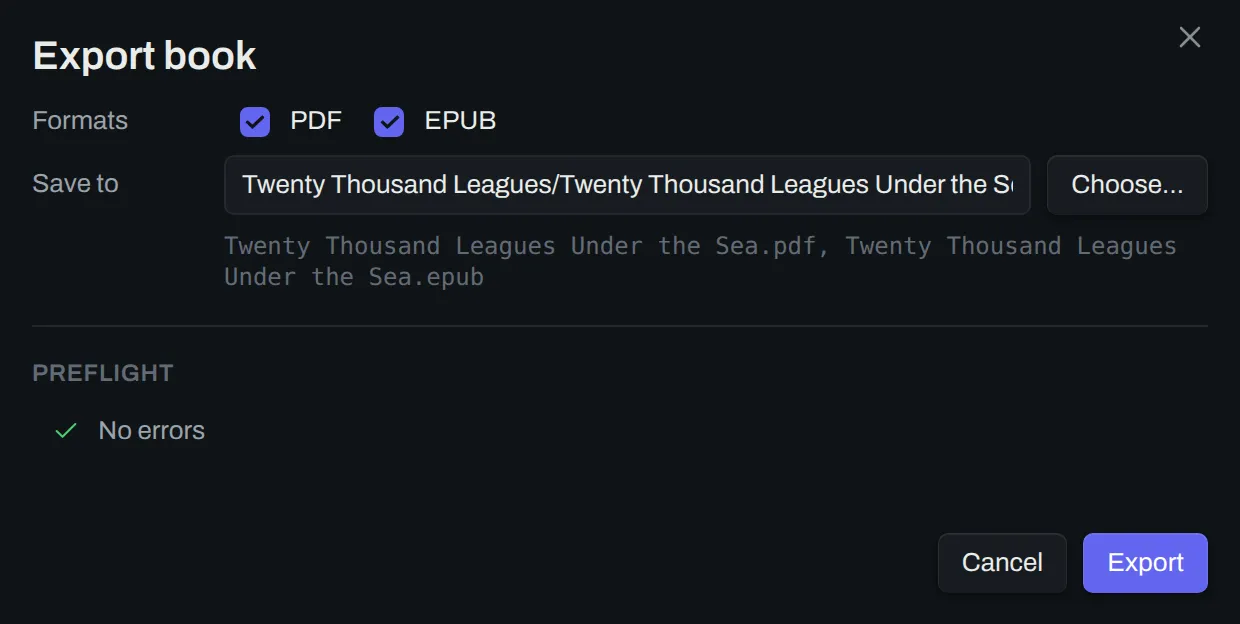
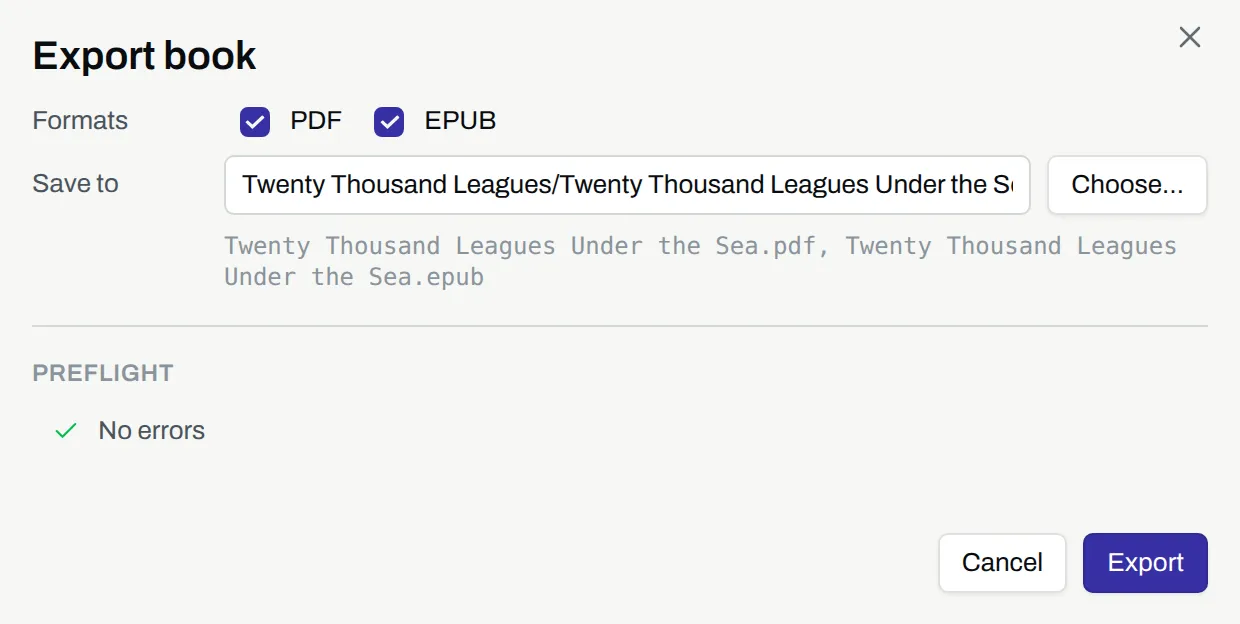
- In
Formats, select each format to write. Orca writes one file for each format. - In
Save to, edit the path of the files, without the extension. By default, the files have the name of the book and are beside the book note. - To save the files in a folder outside the vault, select
Choose…. - When
PreflightshowsNo errors, selectExport.
A reading system makes the pages of an EPUB. So the preview shows the pages of the PDF, not the pages of the EPUB.
Export on a phone or a tablet
Section titled “Export on a phone or a tablet”If the device can share a file, the dialog also has Share. Share sends the files to the share sheet of the system.
Preflight errors
Section titled “Preflight errors”Preflight finds the errors that stop an export. You cannot export until you fix them.
| Error | Action |
|---|---|
Missing note: <name> |
Show in navigator |
Missing font: <name> |
Change font… |
Cannot read font file: <name> |
Change font… |
Missing image: <url> |
Go to line |
Preflight warnings
Section titled “Preflight warnings”Preflight lists each warning from the last render under the errors. A warning does not stop an export. If the book has warnings and no errors, Preflight shows the count, such as No errors · 2 warnings.
- To open the note or the CSS at the line of a warning, select
Go to line. - If a warning names no line, select
Open Issuesto see it in the preview.
The written files
Section titled “The written files”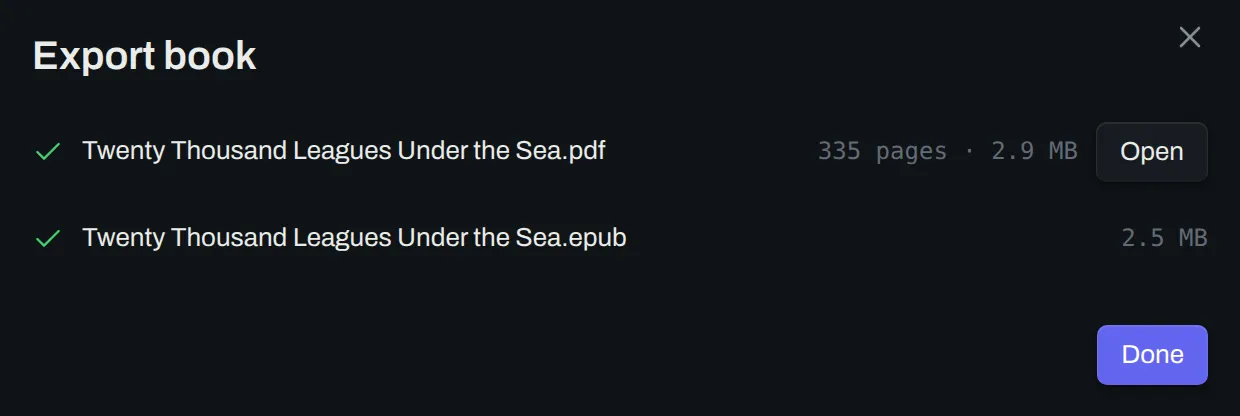
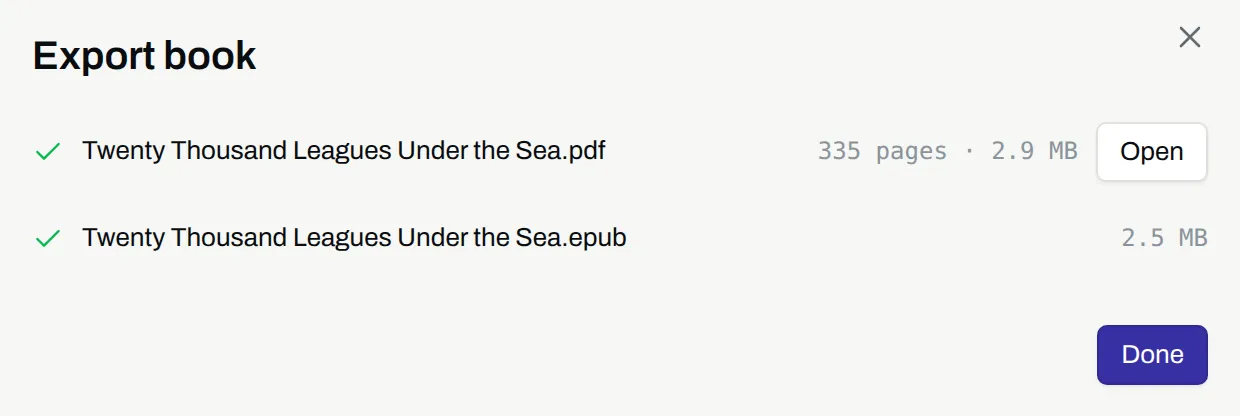
To open the PDF, select Open on its row.