Page
The Page group in the design panel sets the trim, the margins around the text and the bleed. The trim is the size of the page.
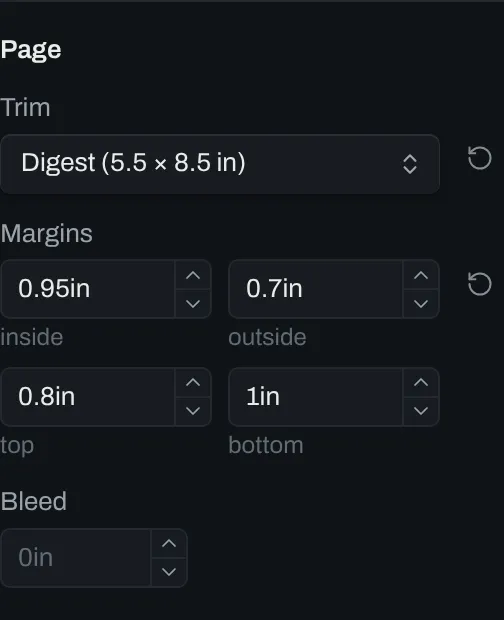
Controls
Section titled “Controls”| # | Control | Default | Key |
|---|---|---|---|
| 1 | Trim | US trade (6 × 9 in) |
trim |
| 2 | Margins inside | 0.75in |
margin-inside |
| 3 | Margins outside | 0.6in |
margin-outside |
| 4 | Margins top | 0.75in |
margin-top |
| 5 | Margins bottom | 0.75in |
margin-bottom |
| 6 | Bleed | 0in |
bleed |
Trim offers these sizes by name:
| Name | Size |
|---|---|
Mass market |
4.25 × 6.87 in |
Digest |
5.5 × 8.5 in |
Novel |
5.25 × 8 in |
US trade |
6 × 9 in |
Demy |
129 × 198 mm |
Royal |
156 × 234 mm |
A5 |
148 × 210 mm |
A custom trim has a width and a height.
Margins
Section titled “Margins”The inside margin is the margin at the spine. The margins mirror: a left page and a right page swap the inside and the outside margin.
A number field takes a number and a unit: pt, pc, in, mm, cm or em. A number with no unit is in points.
The bleed is extra space past the trim on every edge, which the printer cuts off. Art that runs to the edge of the page must continue to the edge of the bleed. Bleed is 0in until you set it, and a common value is 0.125in.
The preview shows the bleed around the page, with a dashed line at the trim. A button in the header of the preview turns the line off and on.
Page measurements
Section titled “Page measurements”The Page measurements setting chooses the unit that the panel uses for the trim, the margins and the bleed. The values are Inches, Millimeters and Points.