Headings
The Headings group in the design panel sets the font, the size, the capitals, the tracking, the alignment and the space around each heading level.
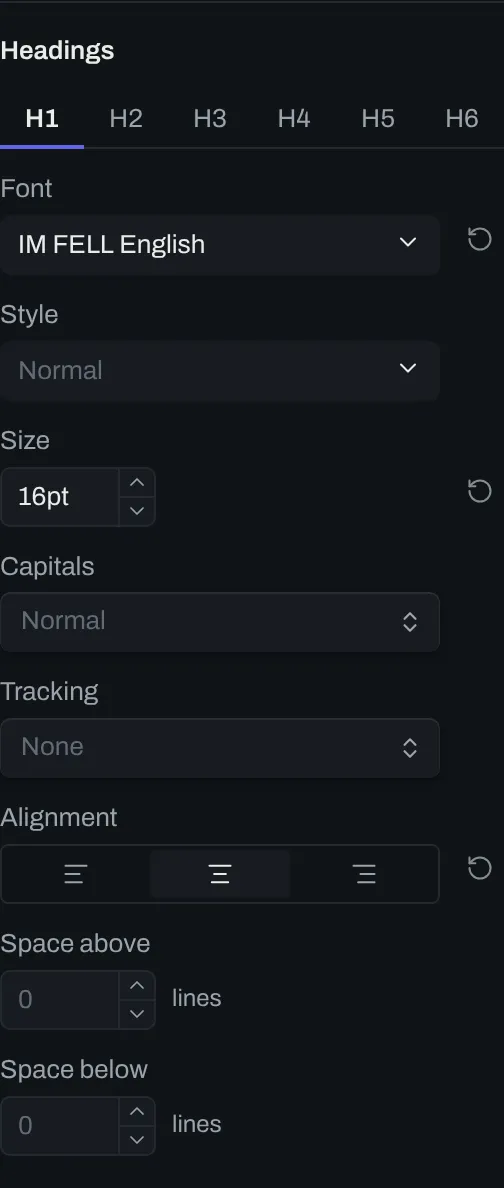
Controls
Section titled “Controls”In a key, N is the heading level, from 1 to 6.
| # | Control | Default | Key |
|---|---|---|---|
| 1 | Level | H1 |
none |
| 2 | Font | EB Garamond |
heading-N-font |
| Variant | The default variant of the font | heading-N-font-variant |
|
| 3 | Style | Normal |
heading-N-style |
| 4 | Size | 19pt |
heading-N-size |
| 5 | Capitals | Normal |
heading-N-caps |
| 6 | Tracking | None |
heading-N-letter-spacing |
| 7 | Alignment | Left |
heading-N-align |
| 8 | Space above | 0 lines | heading-N-space-above |
| 9 | Space below | 0 lines | heading-N-space-below |
Pick a level
Section titled “Pick a level”- Select a level in the level tabs, from
H1toH6. - Change the controls under the level tabs.
If a level has no font of its own, it uses the font from the Text group.
Capitals and tracking
Section titled “Capitals and tracking”Capitals sets the level in small caps or in full capitals. Small caps are the small capital letters the font carries. Tracking is the space between letters.
The two controls set every heading at that level, a chapter title and a part title alike.
Style sets the weight and the slope of every heading at that level. The options are Normal, Bold, Italic and Bold italic. To slope one title alone, use markdown, such as # *Chapter One*.
Alignment
Section titled “Alignment”A heading can be set left, centered or right.
Space around a heading
Section titled “Space around a heading”Space above and Space below are counts of lines of text. If a heading starts a page, Space above moves it down that page.