Custom CSS
The controls of the design panel are limited in what they can style. To further customize the styling of a book, write your own CSS in the CSS view of the design panel.
Write CSS
Section titled “Write CSS”

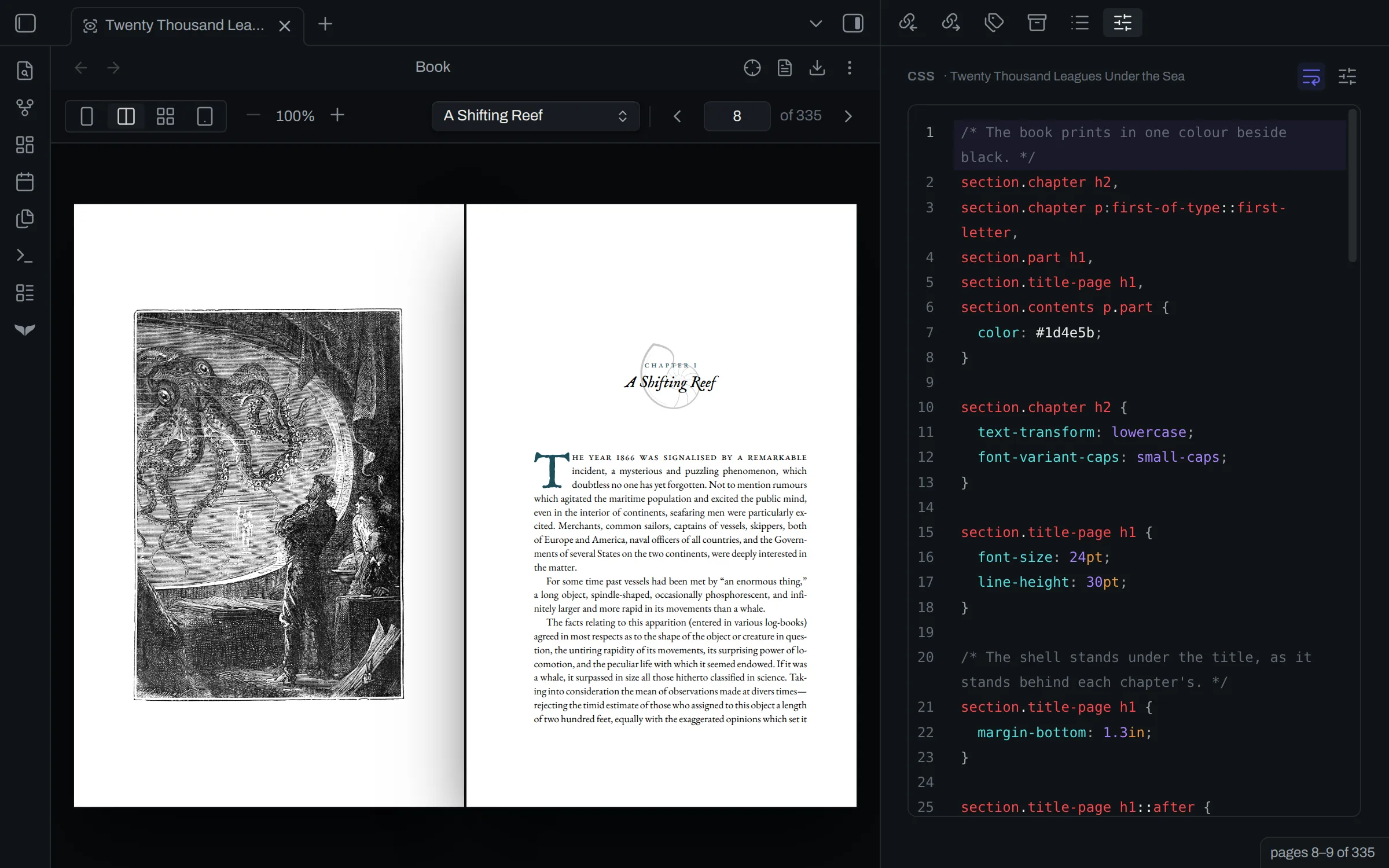
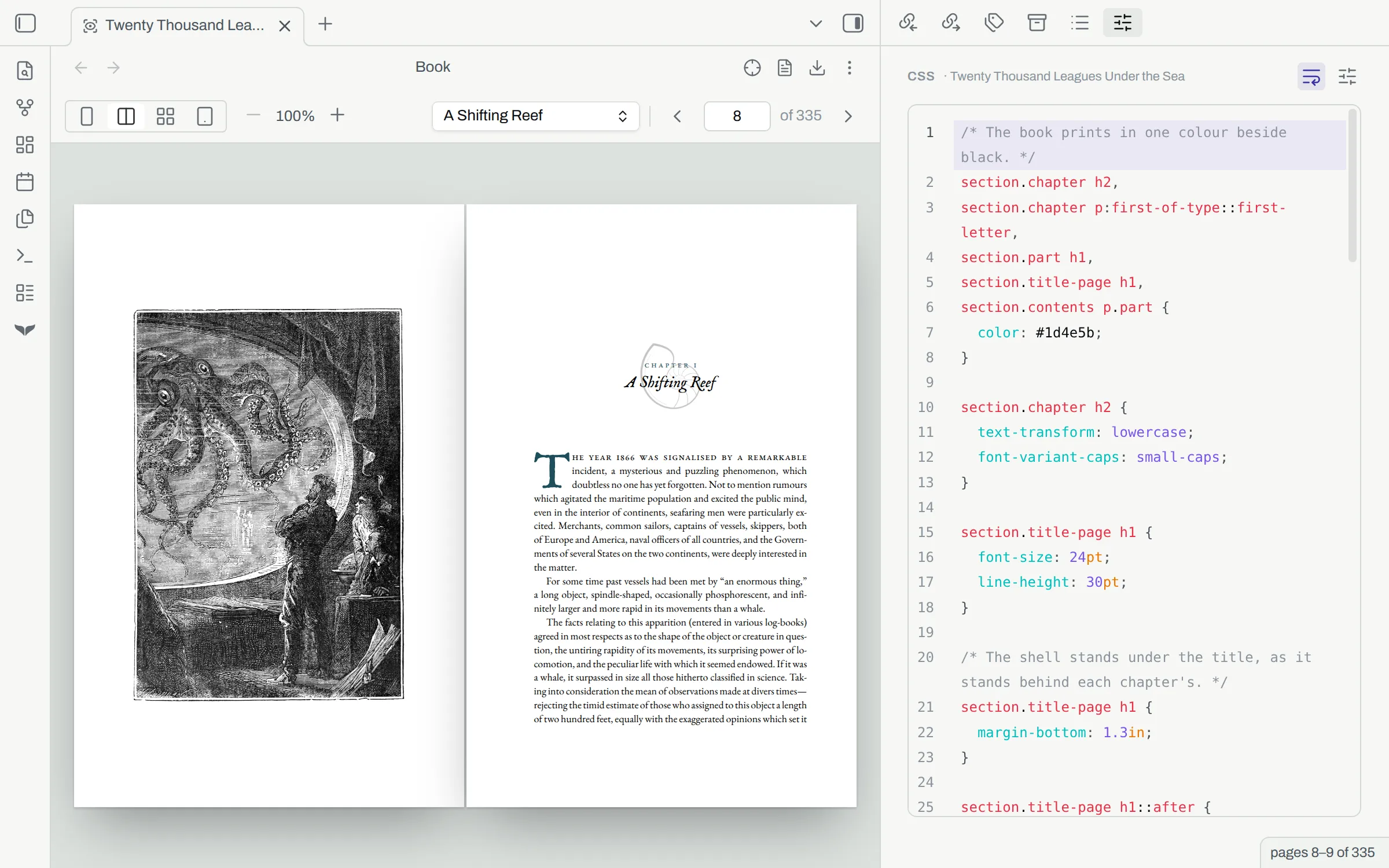
- In the header of the design panel, select CSS. The CSS view opens.
- Type your CSS. The preview shows each change as you type.
- To go back to the controls, select Controls.
To wrap long lines in the editor, select Wrap long lines.
Orca writes your CSS to the book note one second after you stop typing. The CSS goes in a css code block at the end of the note. If the note has more than one css block, orca reads only the first. The book note shows the block in a full note.
What CSS you can use
Section titled “What CSS you can use”Orca typesets the book with fleuron, which supports a subset of CSS. The fleuron CSS subset lists the properties and selectors that you can use.
If fleuron cannot use a declaration, it skips that declaration. The CSS view shows a warning for it.
Warnings
Section titled “Warnings”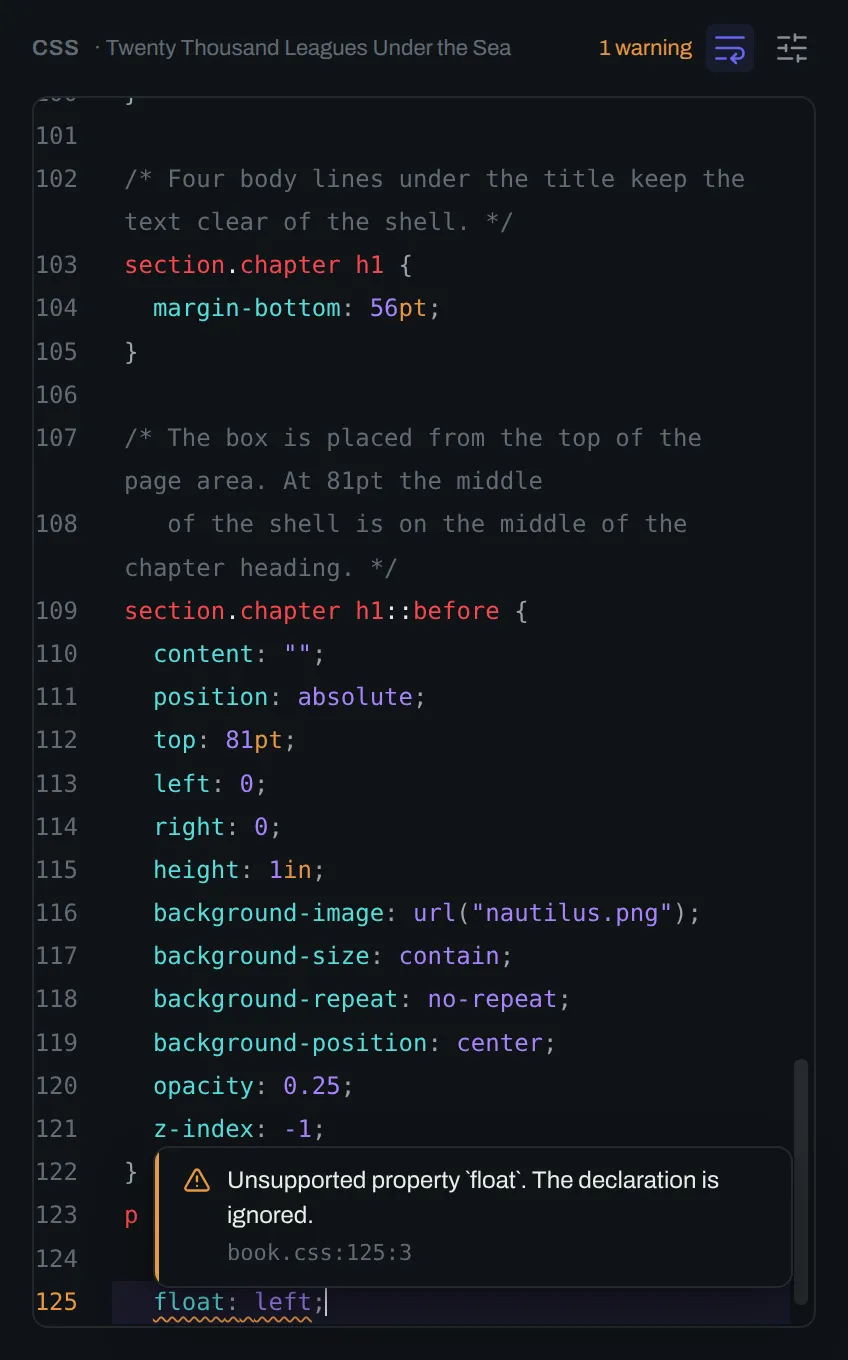
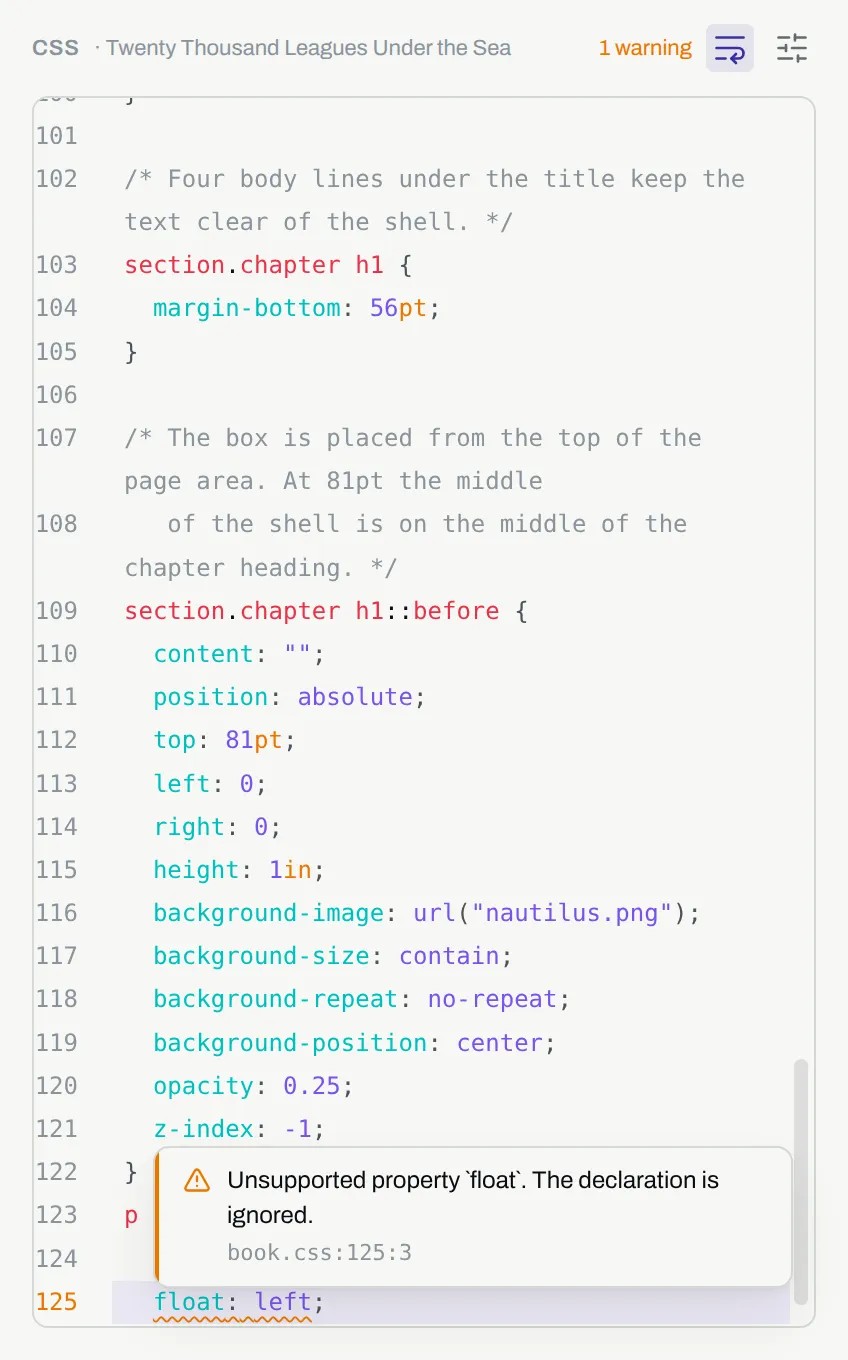
- A wavy line marks the declaration that fleuron skipped, and its line number changes color. Hover over the mark to read the warning and its place, for example
book.css:4:3. - The header of the panel shows the count of warnings.
The preview also shows the count. The preview shows how to open each warning from there.
How your CSS applies
Section titled “How your CSS applies”Orca sends fleuron four sheets, in this order:
| Sheet | Holds |
|---|---|
orca.css |
Orca’s theme |
faces.css |
The fonts that the book loads |
design.css |
The CSS that the controls write |
book.css |
Your CSS |
Your CSS comes last. If your rule and a rule from the controls set the same property with the same specificity, your rule takes precedence. If the rule from the controls is more specific, it takes precedence.
Most controls use plain selectors, for example p + p for the first-line indent. Some controls select each section by its id, for example the controls for chapter openings, for example section#a-shifting-reef. To change a property that one of these controls sets, use a selector that is at least as specific. The inspector shows the selector of each rule. The inspector shows how to use it.
Overridden controls
Section titled “Overridden controls”

If your CSS sets a property that a control also sets, with the same selector, the control dims and shows a lock. You cannot change the control until you remove that property from your CSS. Hover over the lock to see the property, the value that overrides it and its place in your CSS. Select the lock to open the CSS view with the cursor on that line.
Selectors
Section titled “Selectors”Each entry of the reading order is a section. Its class is its role, for example chapter or part. Your own role is a class too. Its id comes from the name of the entry, for example a-shifting-reef. The id stays the same when you move the entry.
| Part of the book | Selector |
|---|---|
| Every section of a role | section.chapter, section.copyright |
| Every section of your own role | section.prologue |
| One section | section#a-shifting-reef |
| The heading that opens each chapter | section.chapter > h1:first-child |
| The first letter of each chapter | section.chapter > h1:first-child + p::first-letter |
| A paragraph after a paragraph | p + p |
| A scene break | hr |
| An entry of the contents | section#contents p.entry |
| A page number in the contents | section#contents p.folio |
| A part in the contents | section#contents p.part |
Each role sets its own named page, for example @page chapter or @page chapter:first. After the first part or chapter, the name ends in -back, for example @page matter-back. @page :left and @page :right set the left and right pages. The running heads and the page numbers are margin boxes of those rules, for example @top-left and @bottom-center.
Images and fonts
Section titled “Images and fonts”A url() in your CSS can name an image in the vault. Orca finds the image from the book note, in the same way as a link. Orca does not load images from the web.
font-family can name a font that a control of the design panel uses, or a font that the Fonts group adds. Orca loads no other font, and it does not load the files in an @font-face rule. Fonts shows how to add a font.