The design panel
The design panel sets how the book looks: the page, the type, the headings and the space around them.
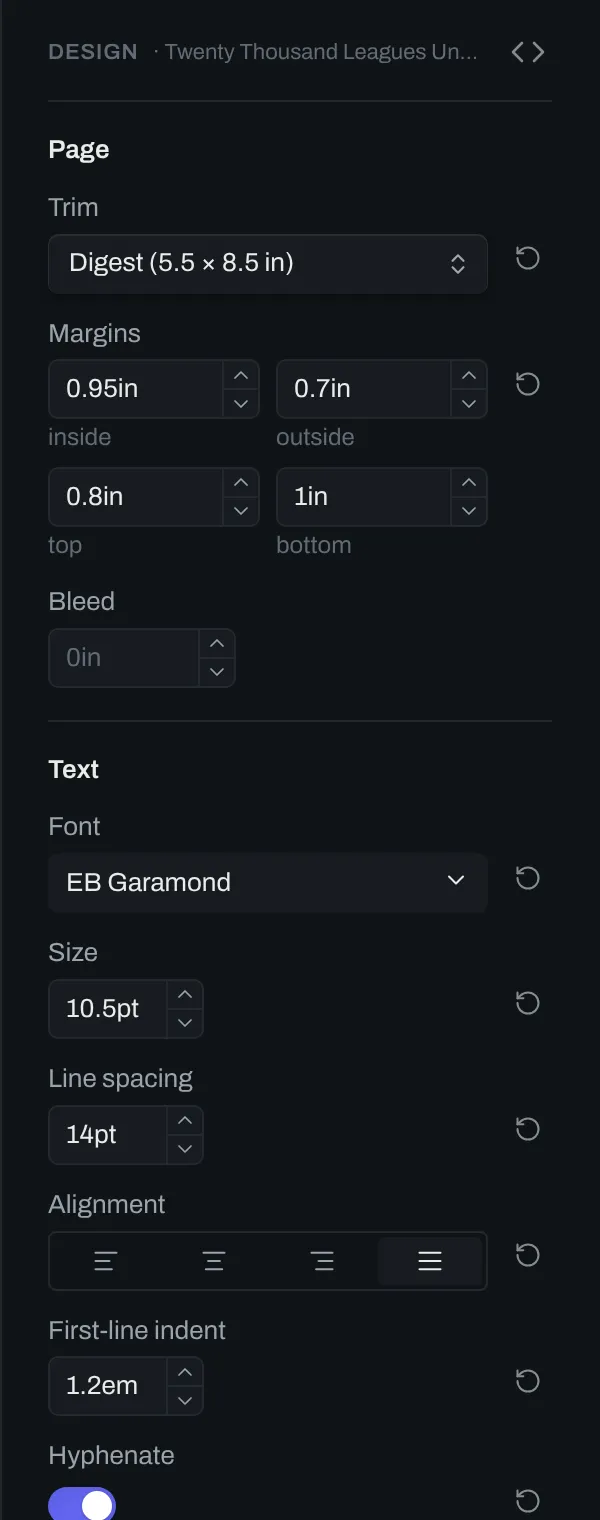
Open the panel
Section titled “Open the panel”The panel is the Design tab in the right sidebar. When you open the preview of a book, the panel opens too. To open the panel at another time, run the command Open the design panel.
The panel shows a book only while the preview of that book is visible. When no book preview is actively visible, the pane shows No book is open.
Change the design
Section titled “Change the design”Each control writes one key to the frontmatter of the book note. The preview shows each change in realtime. Each control that has been modified shows a reset button that can be used to change the value back to it’s default setting.
The controls are grouped into logical sections:
| Group | Sets |
|---|---|
| Page | The trim, the margins and the bleed |
| Text | The font, size and alignment of the text |
| Headings | The font, size and alignment of each heading level |
| Fonts | Additional fonts added to the book |
| Chapter openings | Where a chapter begins, and its drop cap |
| Scene breaks | The mark between two scenes |
| Headers & page numbers | Headers and page numbers |
| Page breaks | Orphans, widows and headings at the foot of a page |
Custom CSS
Section titled “Custom CSS”To change the book’s design in ways that the controls cannot, write your own CSS. Custom CSS shows how.